Is your website moving at a snail’s pace? You’re not alone. A slow website can be a major headache, leading to frustrated visitors, high bounce rates, and poor search engine rankings.
Fortunately, speeding up your WordPress site doesn’t have to be a complicated, code-heavy task. There’s a simpler way to get the lightning-fast speeds you need.
This is where WP Rocket comes in. It’s a powerful caching plugin designed to make your WordPress site faster with minimal effort. But with so many optimization tools on the market, is it the right choice for you?
In this comprehensive WP Rocket review, we’ll walk you through everything you need to know. We’ll cover what it is, how it works, and provide a step-by-step guide to setting it up for maximum performance.
This guide will help you understand the plugin’s features and decide if it’s the key to unlocking your site’s full speed potential.
Key Takeaways
- Website speed is crucial for SEO, user experience (UX), and conversion rates. A slow site can lose visitors and revenue.
- WP Rocket is a premium WordPress caching plugin that automates many performance best practices, making it incredibly user-friendly.
- Easy setup is a major selling point. Most critical optimizations are applied automatically upon activation.
- Core features include page caching, browser caching, GZIP compression, LazyLoad for images, and database optimization.
- Advanced features like delaying JavaScript execution and removing unused CSS can provide significant speed boosts.
- Performance tests consistently show dramatic improvements in loading times and PageSpeed scores after installing WP Rocket.
- Broad compatibility ensures WP Rocket works seamlessly with most themes, plugins, and hosting environments, including Bluehost and Cloudflare.
What Is WP Rocket?
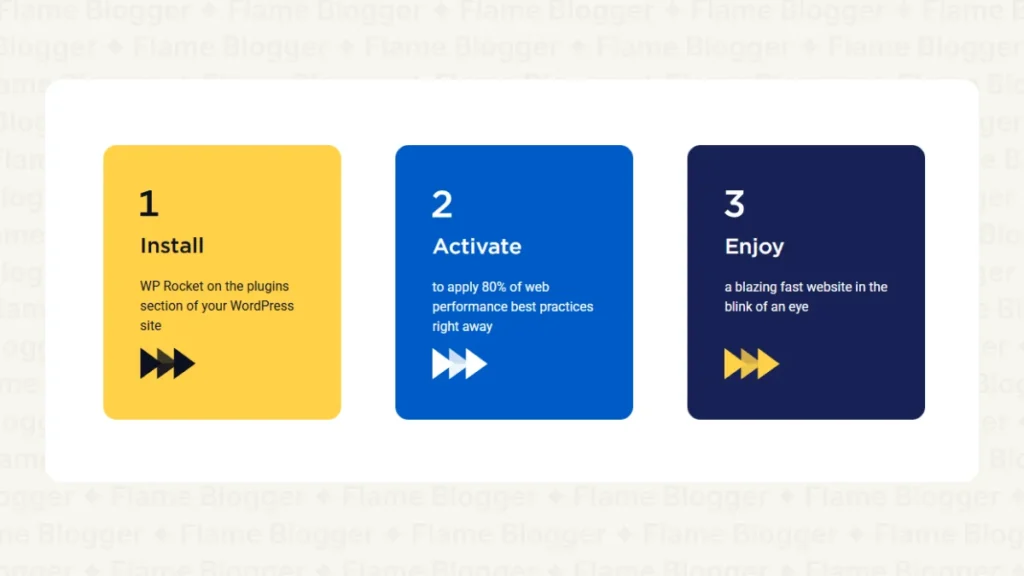
WP Rocket is a premium caching plugin for WordPress that aims to make your website load significantly faster. Unlike many other performance plugins that require a deep technical understanding to configure, WP Rocket is built for simplicity.
It automatically applies over 80% of web performance best practices right after activation, meaning you can see immediate improvements without touching a single line of code.
But what does a caching plugin actually do? In simple terms, it creates a static, ready-to-serve copy of your web pages.
When a visitor comes to your site, their browser doesn’t have to build the page from scratch by querying the database and processing PHP scripts.
Instead, it receives the pre-built static version, which is much faster.
WP Rocket goes beyond basic page caching. It’s an all-in-one optimization suite packed with features designed to address every aspect of site speed. These include:
- Caching: Creates static HTML files of your pages to serve visitors quickly.
- LazyLoad: Delays the loading of images and iframes until they are about to enter the user’s viewport, reducing initial load time.
- Preload: Proactively loads pages into the cache so visitors always get a fast version.
- Delay JS Execution: Postpones the loading of non-essential JavaScript files until a user interacts with the page.
- Remove Unused CSS: A powerful feature that strips out unnecessary CSS code on a per-page basis, drastically reducing file sizes.
- eCommerce Compatibility: Fully compatible with popular plugins like WooCommerce, ensuring your online store remains fast and functional.
- Multilingual Compatibility: Works seamlessly with plugins like WPML and Polylang to cache content for different languages.
Think of it as a turbocharger for your WordPress site. It fine-tunes your site’s engine so it can perform at its absolute best, providing a smooth and speedy experience for your audience.
How to Speed Up Your Site with WP Rocket in 7 Steps
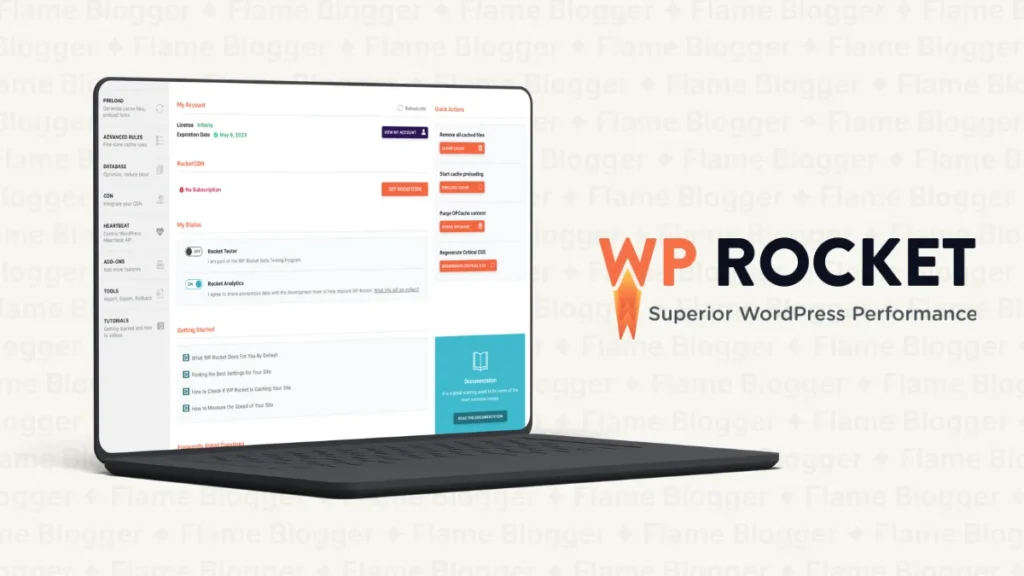
Ready to supercharge your site? This step-by-step guide will walk you through installing and configuring WP Rocket for optimal performance.
Step 1: Purchase and Install WP Rocket
First things first, you need to get the plugin. Since WP Rocket is a premium-only tool, you won’t find it in the free WordPress plugin repository.
- Go to the official WP Rocket website and choose a pricing plan that fits your needs.
- After completing your purchase, you’ll receive a link to download the plugin’s .zip file.
- Log in to your WordPress dashboard.
- Navigate to Plugins > Add New and click the Upload Plugin button.
- Choose the .zip file you downloaded and click Install Now.
- Once the installation is complete, click Activate Plugin.
That’s it! The moment you activate WP Rocket, it starts working its magic. Page caching and browser caching are enabled by default, so you’re already on your way to a faster site.
Step 2: Configure Basic Cache Settings
With WP Rocket activated, a new menu item will appear in your WordPress dashboard. Let’s explore the basic settings. Go to Settings > WP Rocket.
- Cache: In this tab, you can configure caching for mobile devices. WP Rocket automatically enables caching for mobile visitors. If you have a separate mobile theme or use AMP, you can enable those specific options here. For most responsive websites, the default settings are perfect.
- Cache Lifespan: This setting determines how long cached files are stored before being automatically cleared and regenerated. The default of 10 hours is suitable for most sites. If your site has very static content, you could increase this. If it’s updated frequently, you might want a shorter lifespan.
Step 3: Optimize Your Files
The File Optimization tab is where some of the most powerful speed gains happen. This section helps you minify and combine CSS and JavaScript files.
Minification is the process of removing unnecessary characters (like whitespace and comments) from code to reduce file size.
- Minify CSS files: Enable this option to shrink your CSS files.
- Combine CSS files: This option merges all your CSS files into one. Warning: This feature can sometimes break a site’s styling. Always test your site after enabling it.
- Optimize CSS delivery: This contains the powerful Remove Unused CSS feature. It analyzes each page and creates a unique CSS file containing only the styles needed for that specific page. This is a game-changer for reducing page bloat and improving PageSpeed scores.
- Minify JavaScript files: Similar to CSS minification, this reduces the size of your JS files.
- Combine JavaScript files: Merges your JS files into a single file. Warning: Like combining CSS, this can cause conflicts. Test thoroughly.
- Load JavaScript deferred: This prevents render-blocking JavaScript by loading it after the main content of your page has loaded.
- Delay JavaScript execution: This is one of WP Rocket’s star features. It delays the loading of all JavaScript files until a user interacts with the page (e.g., scrolls or clicks). This can dramatically improve initial load times and scores on tools like GTmetrix and Google PageSpeed Insights.
Step 4: Optimize Your Media
Large images are one of the most common culprits of slow websites. The Media tab in WP Rocket offers several tools to combat this.
- LazyLoad: Enable this for images, iframes, and videos. It ensures that media content only loads when it’s about to become visible to the user. This is essential for long pages with many images.
- Add missing image dimensions: This helps prevent layout shifts by adding width and height attributes to your images, which is a key factor for improving Cumulative Layout Shift (CLS) scores.
Step 5: Preload the Cache
Preloading ensures that your visitors always get a fast, cached version of your site. WP Rocket does this by automatically visiting your pages in the background and building the cache.
Go to the Preload tab:
- Activate Preloading: Make sure this is enabled.
- Activate sitemap-based cache preloading: If you use an SEO plugin like Yoast SEO or Rank Math, WP Rocket will automatically detect your sitemap and use it to preload all the URLs on your site. This is the most efficient way to ensure complete cache coverage.
- Preload Fonts: You can specify font files to be preloaded, which can help speed up rendering time and fix “ensure text remains visible during webfont load” warnings.
Step 6: Perform Advanced Database Cleanup
Over time, your WordPress database can get cluttered with unnecessary data like post revisions, trashed comments, and transients. A bloated database can slow down your site.
Navigate to the Database tab to clean things up:
- Post Cleanup: You can remove old revisions, auto-drafts, and trashed posts.
- Comments Cleanup: Delete spam and trashed comments.
- Transients Cleanup: Transients are temporary data. Clearing them out can free up space.
- Database Cleanup: This option optimizes your database tables.
You can run these cleanups manually or schedule them to run automatically on a daily, weekly, or monthly basis. Always take a database backup before running a cleanup for the first time.
Step 7: Test Your Performance
Now for the fun part: seeing the results. Before and after testing is the best way to quantify the impact of WP Rocket.
- Before Test: Before installing WP Rocket, run your site through a speed testing tool like GTmetrix or Google PageSpeed Insights. Save the results.
- After Test: After configuring WP Rocket as described above, clear your site’s cache one last time from the WP Rocket menu in the top admin bar. Then, run the speed test again.
You should see a significant improvement in your site’s load time, a higher performance score, and better Core Web Vitals. The difference is often dramatic, taking sites from sluggish to snappy in just a few clicks.
Pros and Cons of WP Rocket
| Pros | Cons |
|---|---|
| Beginner-friendly setup with no coding required. | No free version, which might deter budget-conscious users. |
| Caching, minification, and lazy loading make sites load faster. | Rarely, some themes or plugins might need minor adjustments. |
| Faster loading improves search engine rankings. | |
| Regular updates to stay compatible with WordPress and keep your site performing at its best. | |
| Excellent customer service and documentation. |
Does WP Rocket Compress Images?
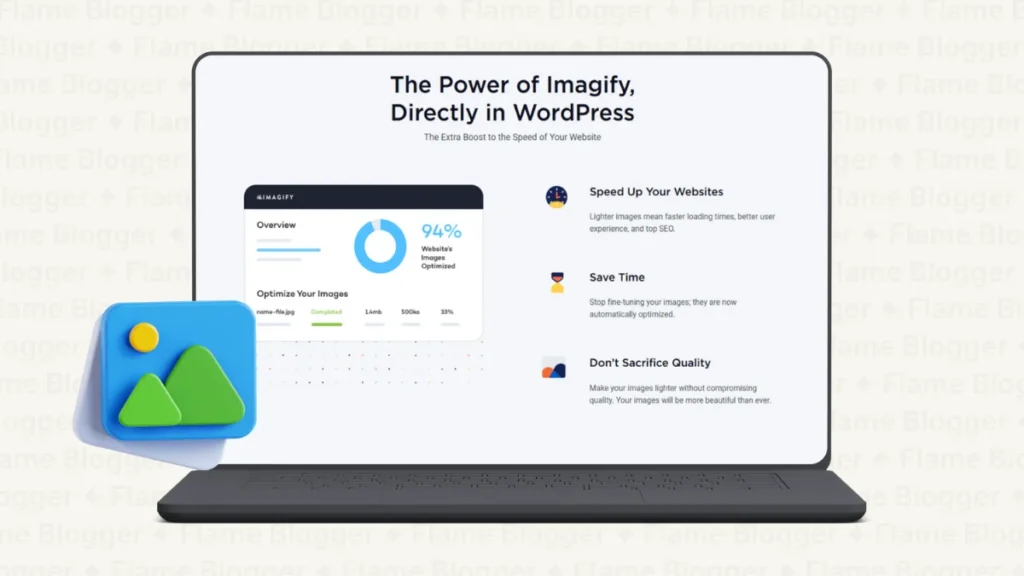
No, WP Rocket does not compress images directly. This is a common misconception. WP Rocket is primarily a caching and file optimization plugin.
While it optimizes the delivery of images through features like LazyLoad, it does not reduce their file size.
For image compression, WP Rocket recommends their sister plugin, Imagify. Imagify is a dedicated image optimization plugin that automatically compresses your images upon upload and can bulk-optimize your existing media library.
Using WP Rocket and Imagify together creates a powerful combination for total site speed optimization. Imagify handles the image file sizes, and WP Rocket ensures they are delivered to the user as efficiently as possible.
Can I Use WP Rocket on Bluehost?
Yes, you can absolutely use WP Rocket on Bluehost. WP Rocket is designed for broad compatibility and works well with the vast majority of hosting providers, including popular shared hosting platforms like Bluehost.
In fact, using a robust caching plugin like WP Rocket is especially beneficial on shared hosting environments.
Shared servers often have more limited resources, and an effective caching strategy can significantly reduce the server load caused by your website, leading to faster performance and better stability.
Bluehost even offers its own built-in caching, but WP Rocket provides a much more comprehensive and powerful suite of optimization features that can deliver superior results.
Can I Use WP Rocket with Cloudflare?

Yes, WP Rocket integrates seamlessly with Cloudflare. Cloudflare is a Content Delivery Network (CDN) and security service that operates at the DNS level, while WP Rocket is a plugin that optimizes your WordPress site at the application level.
They complement each other perfectly.
WP Rocket has a dedicated add-on for Cloudflare that makes integration simple. You can find it under the Add-ons tab in the WP Rocket settings.
By entering your Cloudflare API key, you can connect your accounts. This allows you to:
- Clear the Cloudflare cache directly from your WordPress dashboard.
- Automatically sync settings to ensure optimal compatibility.
Using WP Rocket with Cloudflare creates a multi-layered caching strategy. Cloudflare caches your static assets (like images and CSS) on its global network of servers, while WP Rocket handles dynamic page caching on your origin server.
This combination ensures visitors receive content from the fastest possible location, whether it’s the Cloudflare CDN or your site’s optimized cache.
Does WP Rocket Affect SEO?
Yes, WP Rocket positively affects SEO, primarily by improving your website’s speed and performance.
Site speed is a confirmed ranking factor for Google, both on desktop and mobile. A faster website leads to a better user experience, which Google rewards with higher rankings.
Here’s how WP Rocket helps your SEO efforts:
- Improves Core Web Vitals: WP Rocket’s features, such as delaying JavaScript, removing unused CSS, and adding missing image dimensions, directly address Google’s Core Web Vitals (LCP, FID, and CLS). Better scores can lead to better search rankings.
- Reduces Bounce Rate: Faster load times keep visitors engaged. When users don’t have to wait for pages to load, they are less likely to leave, which sends positive signals to search engines.
- Enhances User Experience: A fast, responsive website provides a better overall experience for users, which is the ultimate goal of search engines.
By optimizing your site’s technical performance, WP Rocket lays a strong foundation for your entire SEO strategy.
WP Rocket Alternatives
While WP Rocket is a top contender, it’s not the only performance plugin on the market. Here are a few alternatives:
- W3 Total Cache: A highly popular free plugin with a vast array of configuration options. It’s powerful but can be overwhelming for beginners due to its complex interface.
- WP Super Cache: Another free plugin developed by Automattic (the company behind WordPress.com). It’s simpler to set up than W3 Total Cache but offers fewer advanced features than WP Rocket.
- LiteSpeed Cache: An excellent free plugin, but it requires your website to be hosted on a server running LiteSpeed web server software. If your host uses LiteSpeed, this plugin offers performance comparable to premium options.
The main advantage of WP Rocket over these alternatives is its combination of power and simplicity.
It provides advanced optimization features in an intuitive, user-friendly package that delivers outstanding results right out of the box.
Is WP Rocket Worth It?
So, we arrive at the big question: Is WP Rocket worth the investment?
For the vast majority of WordPress website owners, the answer is a resounding yes.
If you value your time and want a hassle-free way to achieve significant speed improvements, WP Rocket is an unbeatable solution. The plugin automates complex optimization tasks that would otherwise require hours of manual work or hiring a developer.
The immediate and noticeable boost in performance, improved user experience, and positive impact on SEO make the annual fee a worthwhile investment.
Consider the cost of a slow website: lost visitors, lower conversion rates, and poor search rankings.
WP Rocket directly addresses these issues, providing a clear return on investment. While free alternatives exist, none offer the same level of effectiveness, ease of use, and expert support.
It’s Your Turn to Speed Up Your Site

A slow website is no longer an option. With tools like WP Rocket, achieving top-tier performance is more accessible than ever.
By following the steps in this guide, you can transform your site from slow and clunky to fast and responsive, delighting your visitors and boosting your bottom line.
While WP Rocket is incredibly user-friendly, fine-tuning your website for maximum speed can still be a complex task. If you want to ensure your site is perfectly optimized without the guesswork, consider getting professional help.
A web design agency specializing in performance optimization can configure WP Rocket and implement other advanced strategies to get your site loading at lightning speed.
Final Thoughts
If you’re serious about speeding up your WordPress site without diving into complicated technical tweaks, WP Rocket is a no-brainer.
With its powerful caching, file optimization, and user-friendly setup, it doesn’t just improve load times—it enhances user experience and boosts SEO potential.
Whether you’re a blogger, business owner, or developer, WP Rocket makes site performance effortless.
In short: faster pages, happier visitors, and better rankings—all in one plugin.
Don’t let slow loading times hold you back—install WP Rocket and watch your site soar!

Liam Brooks is a passionate tech blogger who explores the latest innovations in gadgets, software, and digital trends.